> ## Documentation Index
> Fetch the complete documentation index at: https://infisical-pam-revamp.mintlify.site/llms.txt
> Use this file to discover all available pages before exploring further.
# GitHub Radar Connection
> Learn how to configure a GitHub Radar Connection for Infisical.
Infisical supports GitHub App installation for creating a GitHub Radar Connection.
GitHub Radar Connections are specifically configured for [Secret Scanning](/documentation/platform/secret-scanning/overview) and require specific permissions and webhook configuration.
Check out our [GitHub Connection](/integrations/app-connections/github) for secret management features such as [Secret Syncs](/integrations/secret-syncs/overview).
Using a GitHub Radar Connection with app authentication on a self-hosted instance of Infisical requires configuring an application on GitHub
and registering your instance with it.
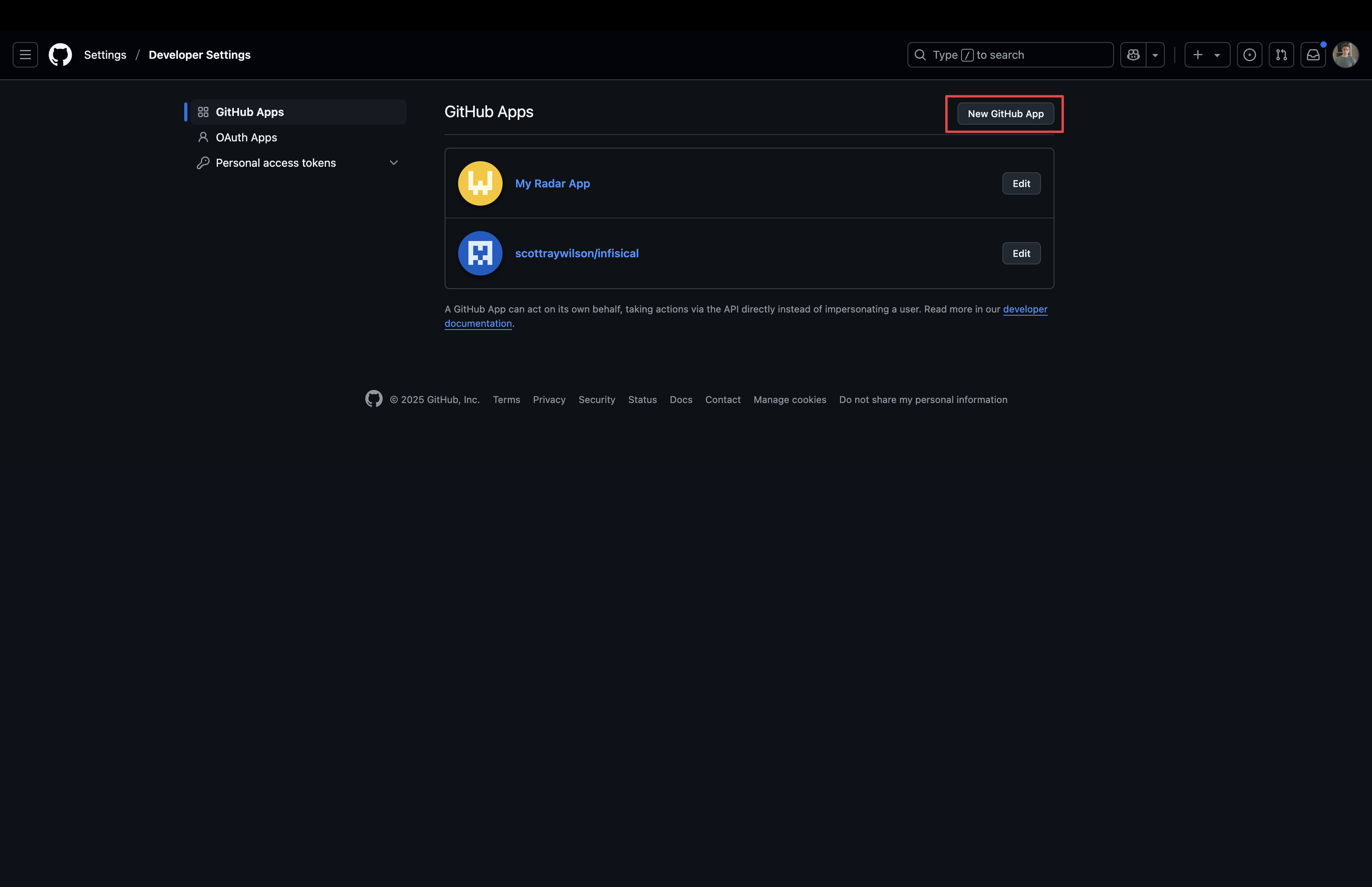
Navigate to the GitHub App Settings [here](https://github.com/settings/apps). Click **New GitHub App**.
If you have a GitHub organization, you can create an application under it
in your organization Settings > Developer settings > GitHub Apps > New GitHub App.
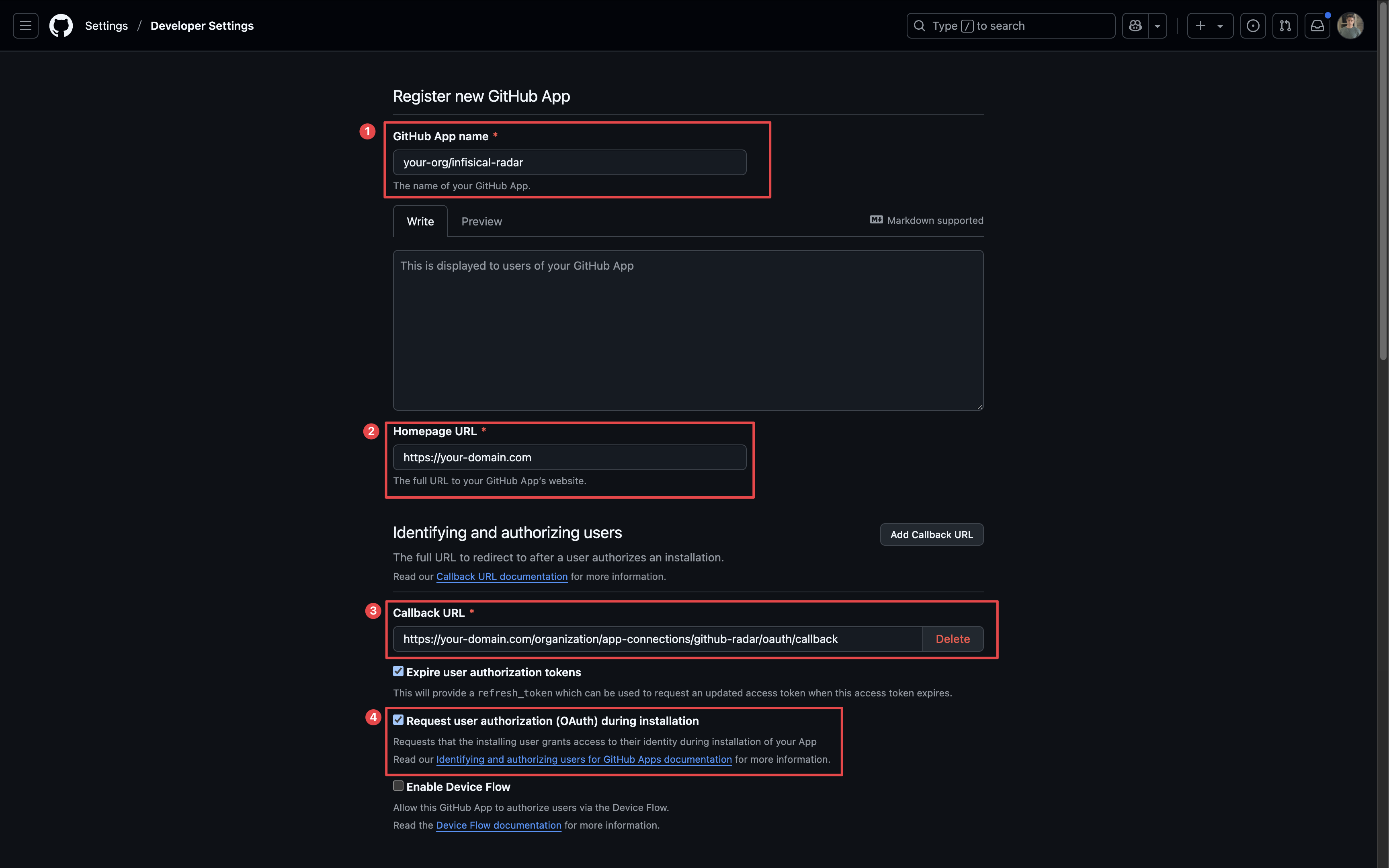
 Configure the following fields:
1. **Name** - give your app a name
2. **Homepage URL** - your self-hosted domain (i.e. `https://your-domain.com`)
3. **Callback URL** - the callback URL for your domain (i.e. `https://your-domain.com/organization/app-connections/github-radar/oauth/callback`)
4. **User Authorization** - enable request user authorization on app installation
Configure the following fields:
1. **Name** - give your app a name
2. **Homepage URL** - your self-hosted domain (i.e. `https://your-domain.com`)
3. **Callback URL** - the callback URL for your domain (i.e. `https://your-domain.com/organization/app-connections/github-radar/oauth/callback`)
4. **User Authorization** - enable request user authorization on app installation
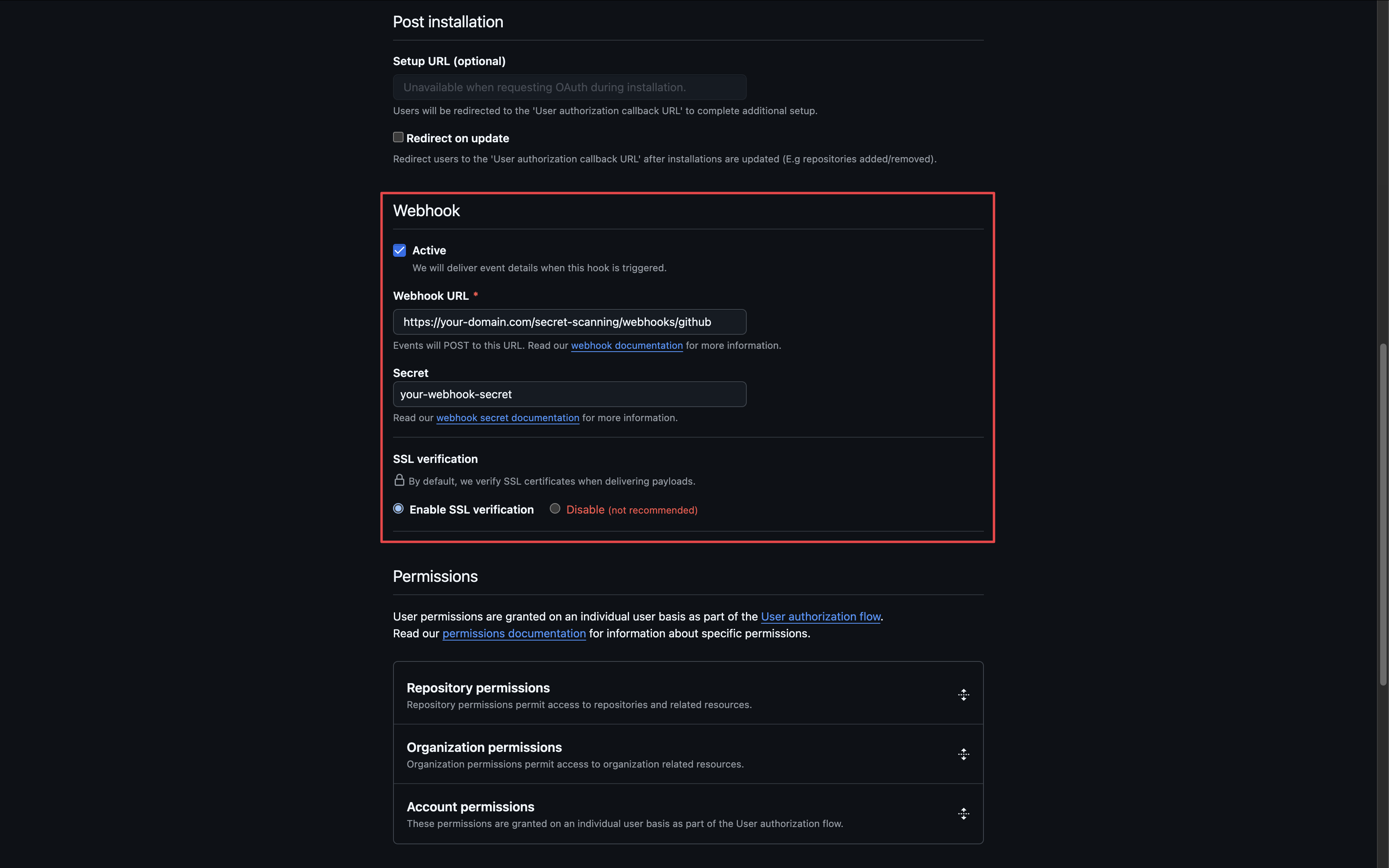
 Enable and configure the Webhook fields:
* **Webhook URL** - the webhook URL for your domain (i.e. `https://your-domain.com/secret-scanning/webhooks/github`)
* **Webhook Secret** - a strong, generated secret to verify webhook payloads
* **SSL Verification** - enable SSL verification
Enable and configure the Webhook fields:
* **Webhook URL** - the webhook URL for your domain (i.e. `https://your-domain.com/secret-scanning/webhooks/github`)
* **Webhook Secret** - a strong, generated secret to verify webhook payloads
* **SSL Verification** - enable SSL verification
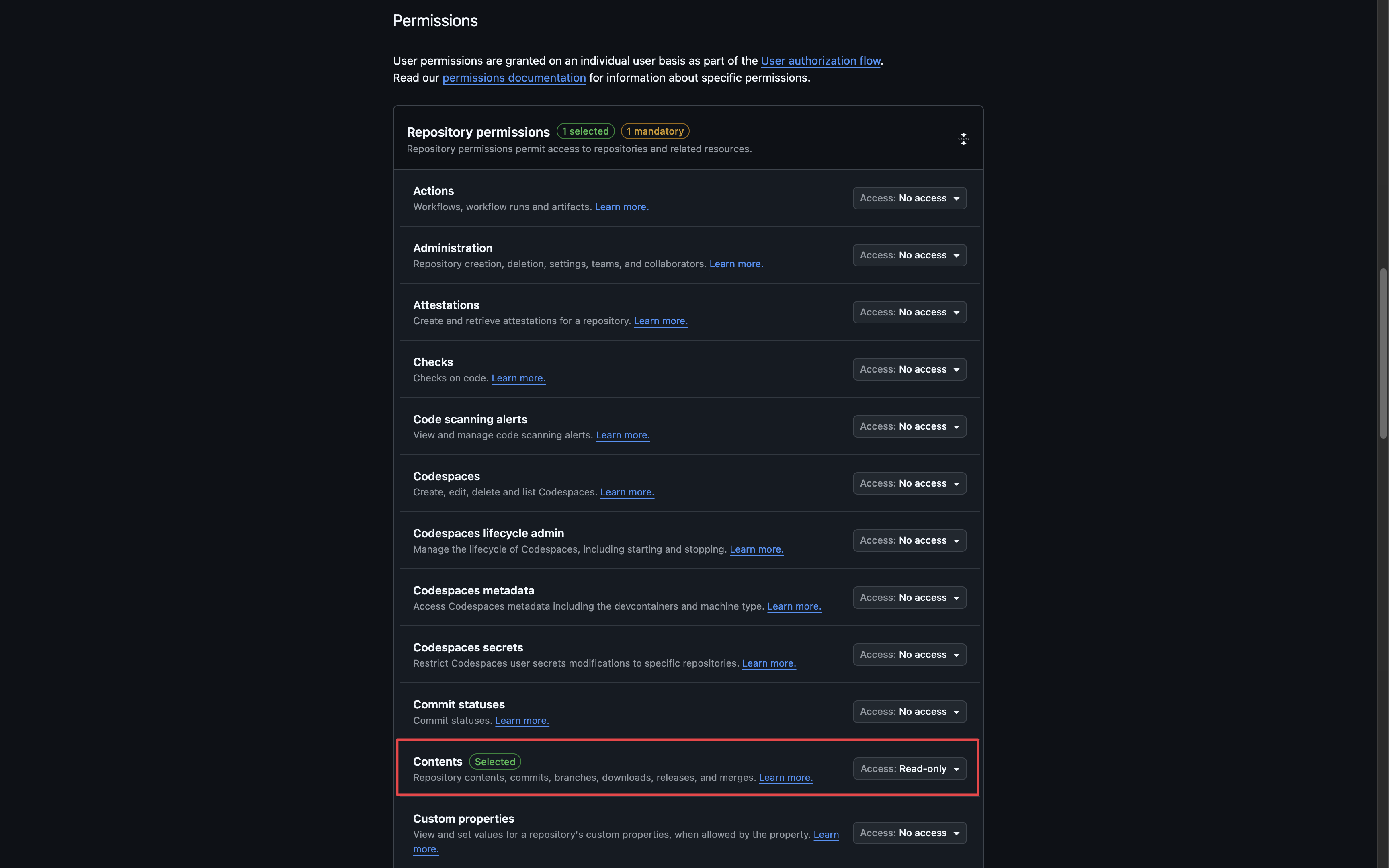
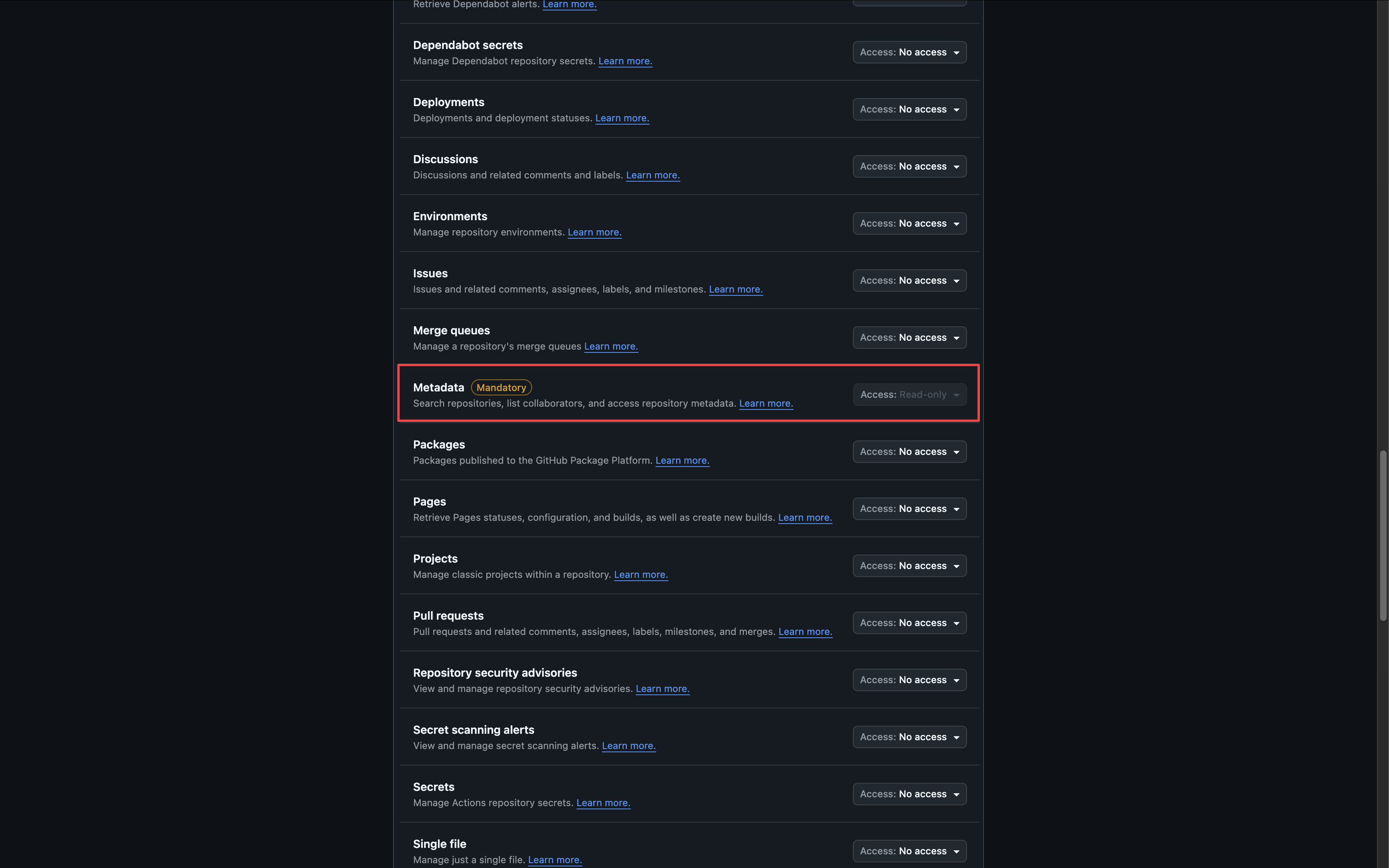
 Set the following repository permissions:
* **Contents**: `Read-only`
* **Metadata**: `Read-only`
Set the following repository permissions:
* **Contents**: `Read-only`
* **Metadata**: `Read-only`
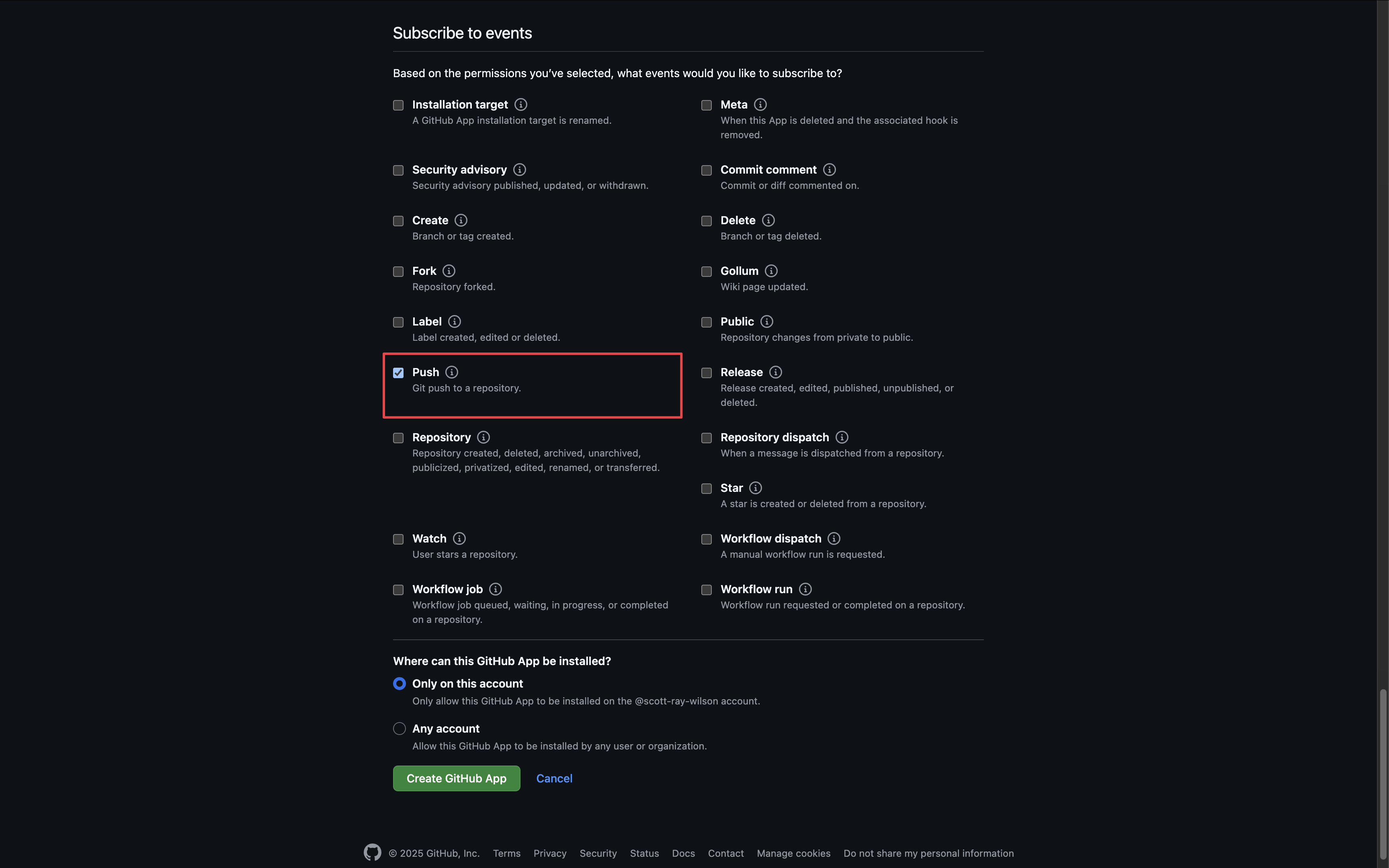
 Subscribe to the following events:
* **Push**
Subscribe to the following events:
* **Push**
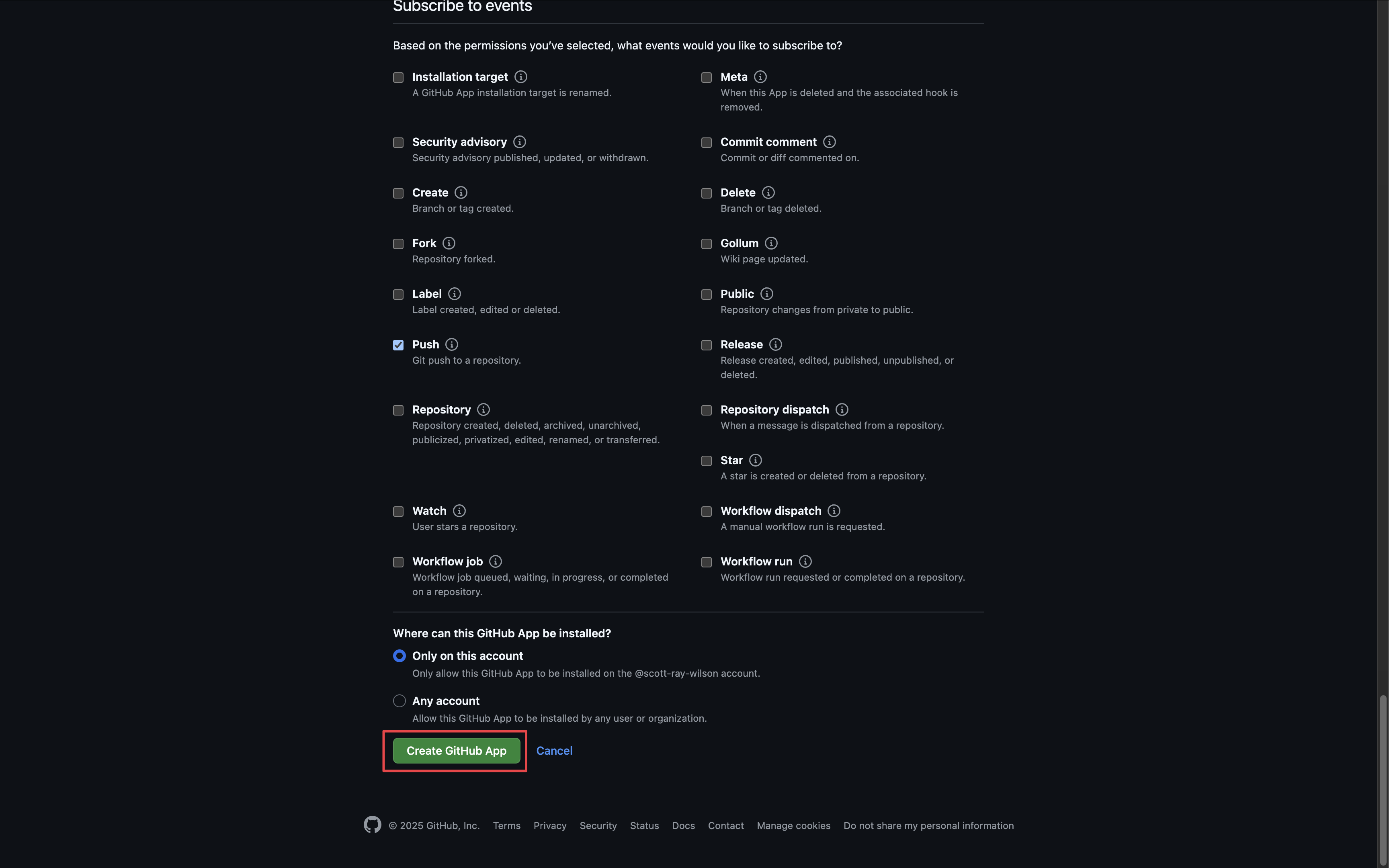
 Create the Github application.
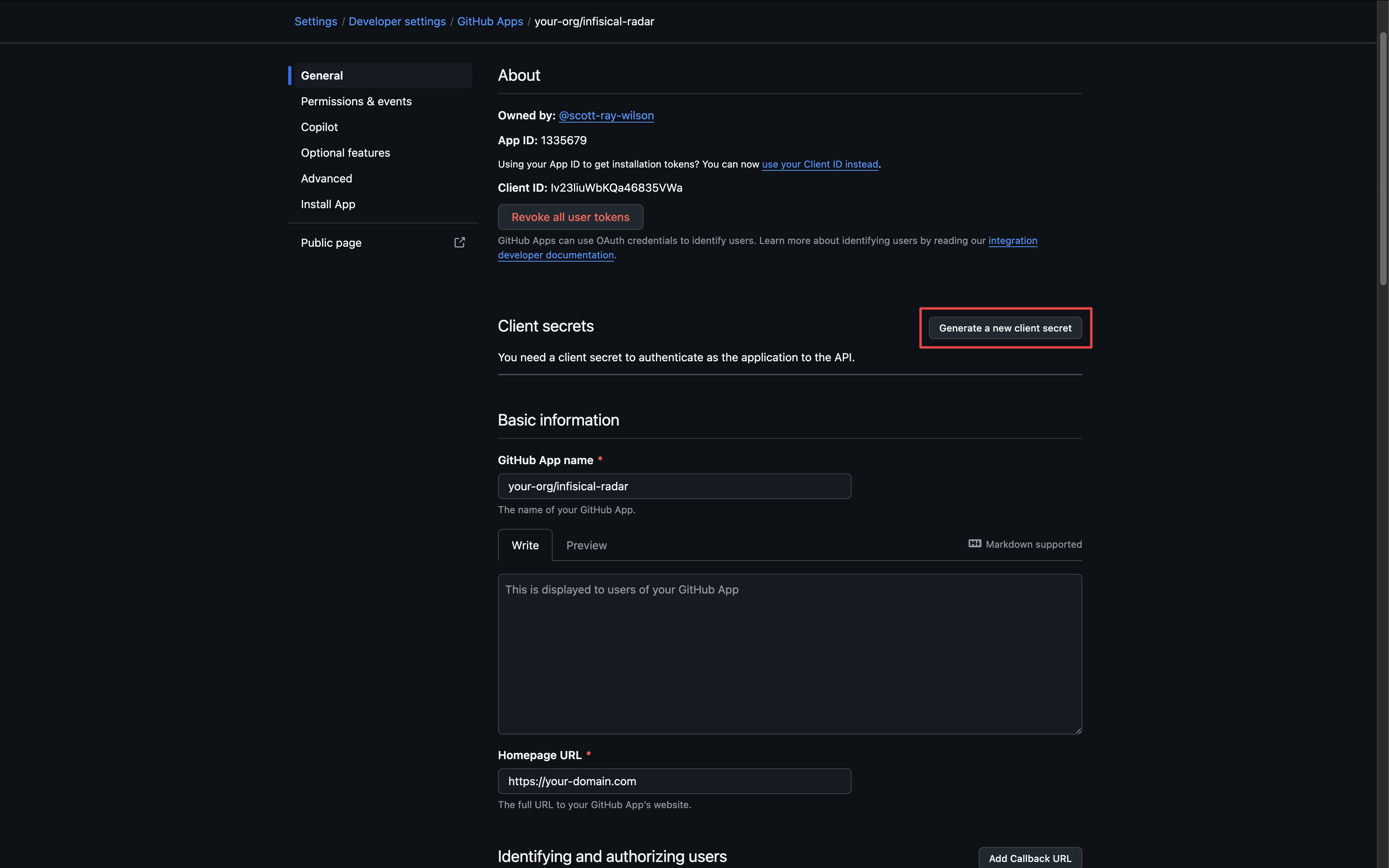
 Generate a new **Client Secret** for your GitHub application.
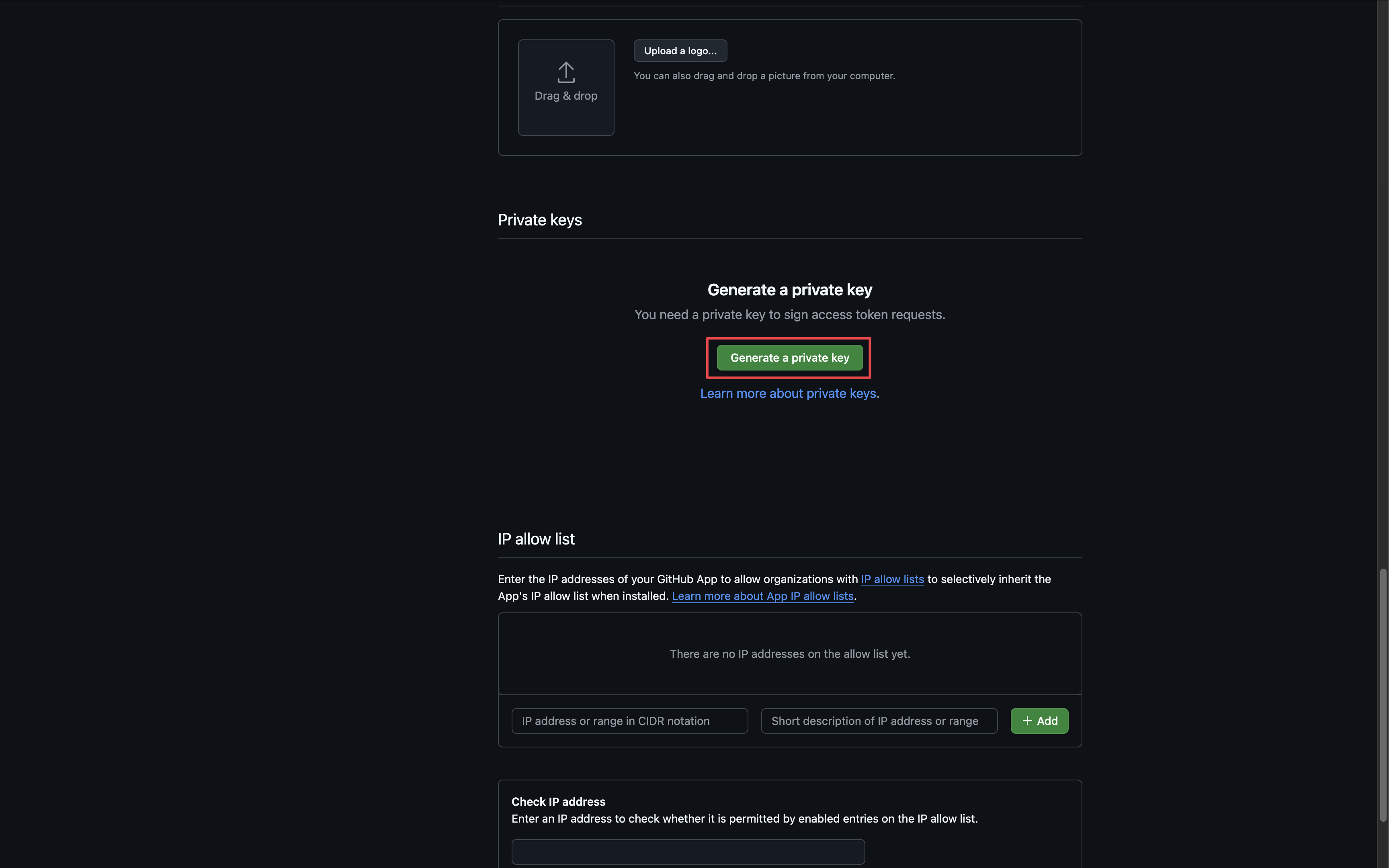
 Generate a new **Private Key** for your Github application.
You will need to copy the contents of the .pem file downloaded
Generate a new **Private Key** for your Github application.
You will need to copy the contents of the .pem file downloaded
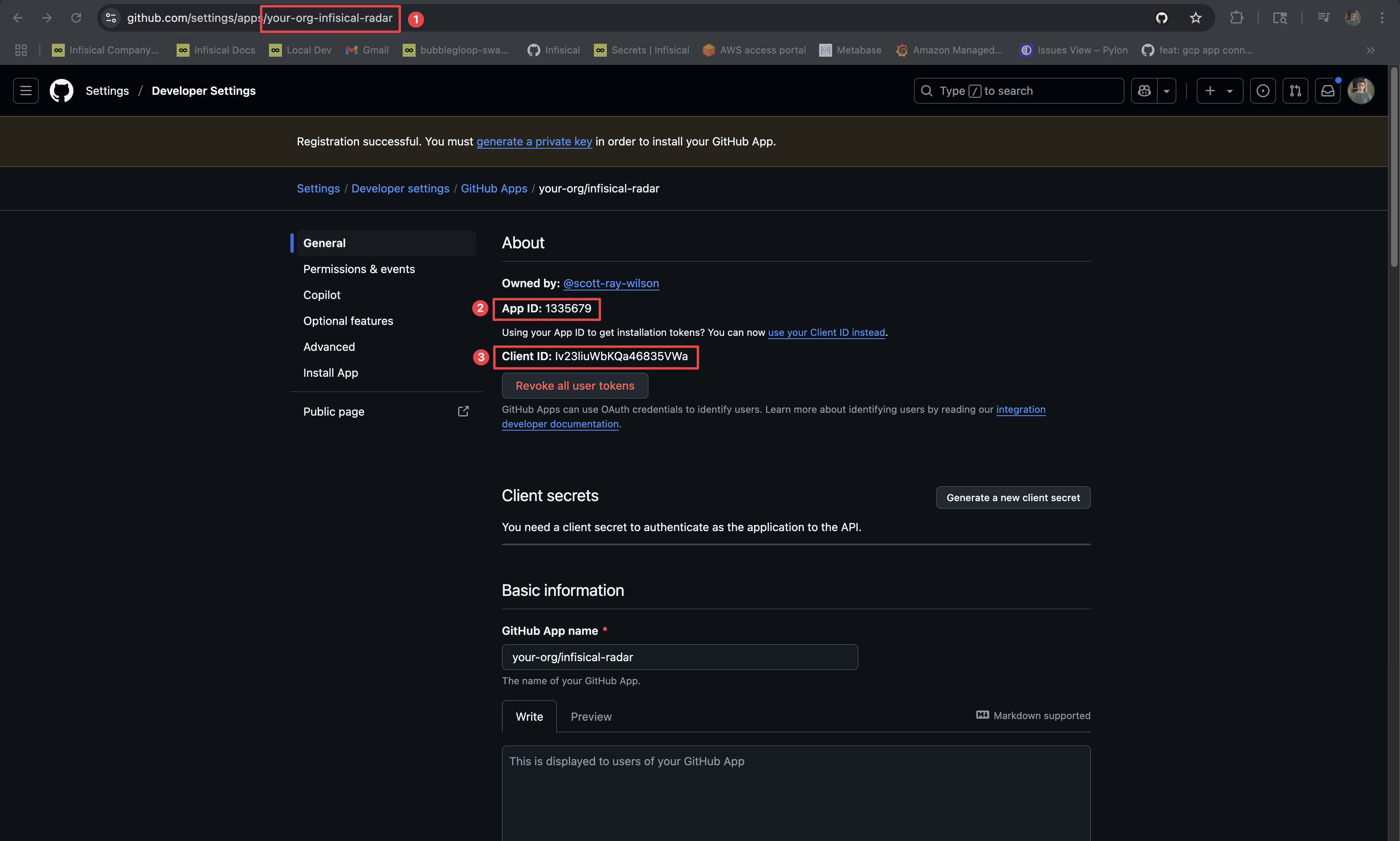
 Obtain the following credentials:
1. **Slug** - the slug of your application found in the URL
2. **App ID** - the ID of your application
3. **Client ID** - the client ID of your application
4. **Client Secret** - the client secret generated above
5. **Private Key** - the contents of the private key .pem file generated above
6. **Webhook Secret** - the secret generated in the previous step when configuring the webhook
Obtain the following credentials:
1. **Slug** - the slug of your application found in the URL
2. **App ID** - the ID of your application
3. **Client ID** - the client ID of your application
4. **Client Secret** - the client secret generated above
5. **Private Key** - the contents of the private key .pem file generated above
6. **Webhook Secret** - the secret generated in the previous step when configuring the webhook
 Back in your Infisical instance, add the six new environment variables for the credentials of your GitHub Radar application:
* `INF_APP_CONNECTION_GITHUB_RADAR_APP_CLIENT_ID`: The **Client ID** of your GitHub application.
* `INF_APP_CONNECTION_GITHUB_RADAR_APP_CLIENT_SECRET`: The **Client Secret** of your GitHub application.
* `INF_APP_CONNECTION_GITHUB_RADAR_APP_SLUG`: The **Slug** of your GitHub application. This is the one found in the URL.
* `INF_APP_CONNECTION_GITHUB_RADAR_APP_ID`: The **App ID** of your GitHub application.
* `INF_APP_CONNECTION_GITHUB_RADAR_APP_PRIVATE_KEY`: The **Private Key** of your GitHub application.
* `INF_APP_CONNECTION_GITHUB_RADAR_APP_WEBHOOK_SECRET`: The **Webhook Secret** of your GitHub application.
Once added, restart your Infisical instance and use the GitHub integration via app authentication.
## Setup GitHub Radar Connection in Infisical
Navigate to the **Integrations** tab in the desired project, then select **App Connections**.
Back in your Infisical instance, add the six new environment variables for the credentials of your GitHub Radar application:
* `INF_APP_CONNECTION_GITHUB_RADAR_APP_CLIENT_ID`: The **Client ID** of your GitHub application.
* `INF_APP_CONNECTION_GITHUB_RADAR_APP_CLIENT_SECRET`: The **Client Secret** of your GitHub application.
* `INF_APP_CONNECTION_GITHUB_RADAR_APP_SLUG`: The **Slug** of your GitHub application. This is the one found in the URL.
* `INF_APP_CONNECTION_GITHUB_RADAR_APP_ID`: The **App ID** of your GitHub application.
* `INF_APP_CONNECTION_GITHUB_RADAR_APP_PRIVATE_KEY`: The **Private Key** of your GitHub application.
* `INF_APP_CONNECTION_GITHUB_RADAR_APP_WEBHOOK_SECRET`: The **Webhook Secret** of your GitHub application.
Once added, restart your Infisical instance and use the GitHub integration via app authentication.
## Setup GitHub Radar Connection in Infisical
Navigate to the **Integrations** tab in the desired project, then select **App Connections**.
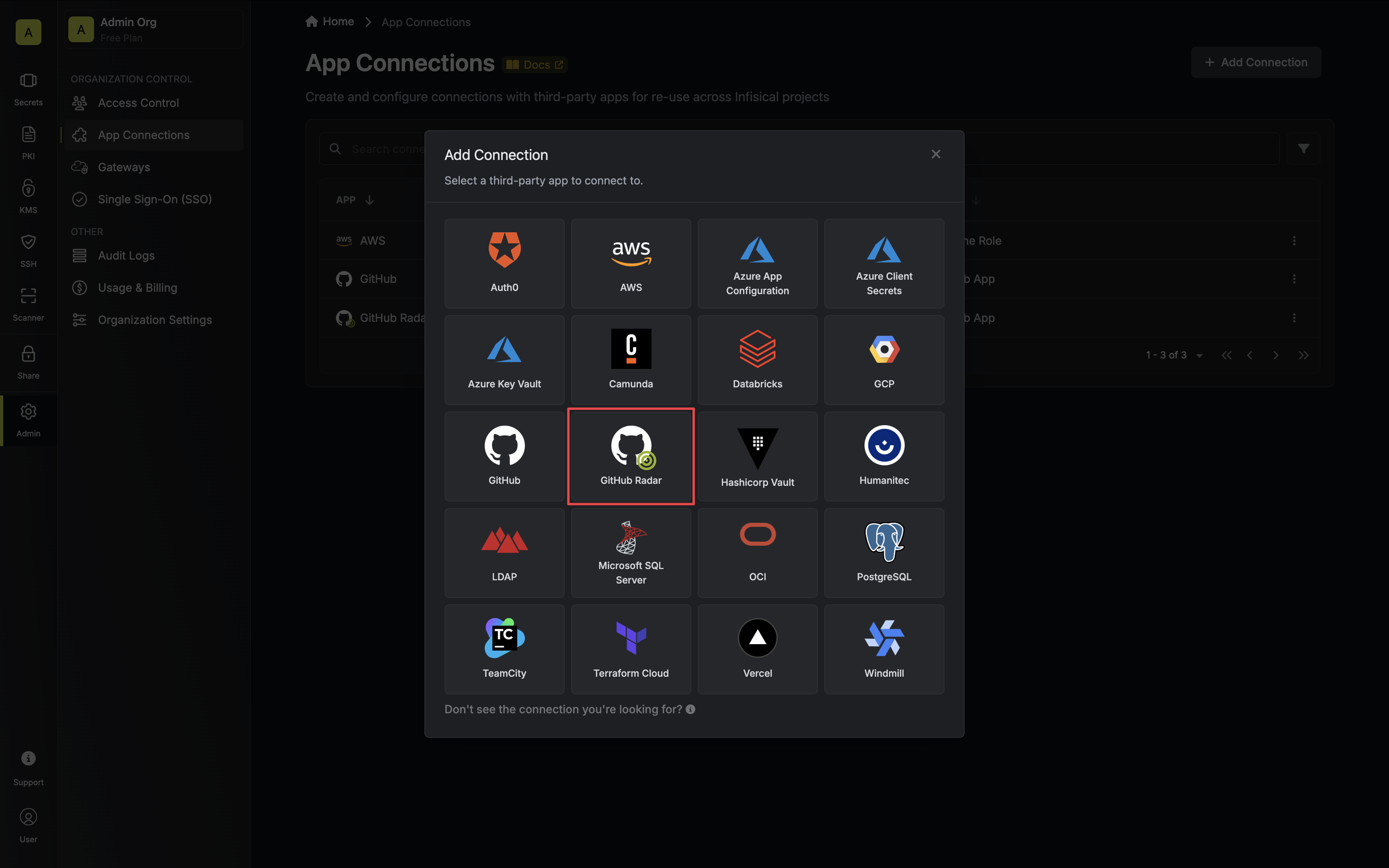
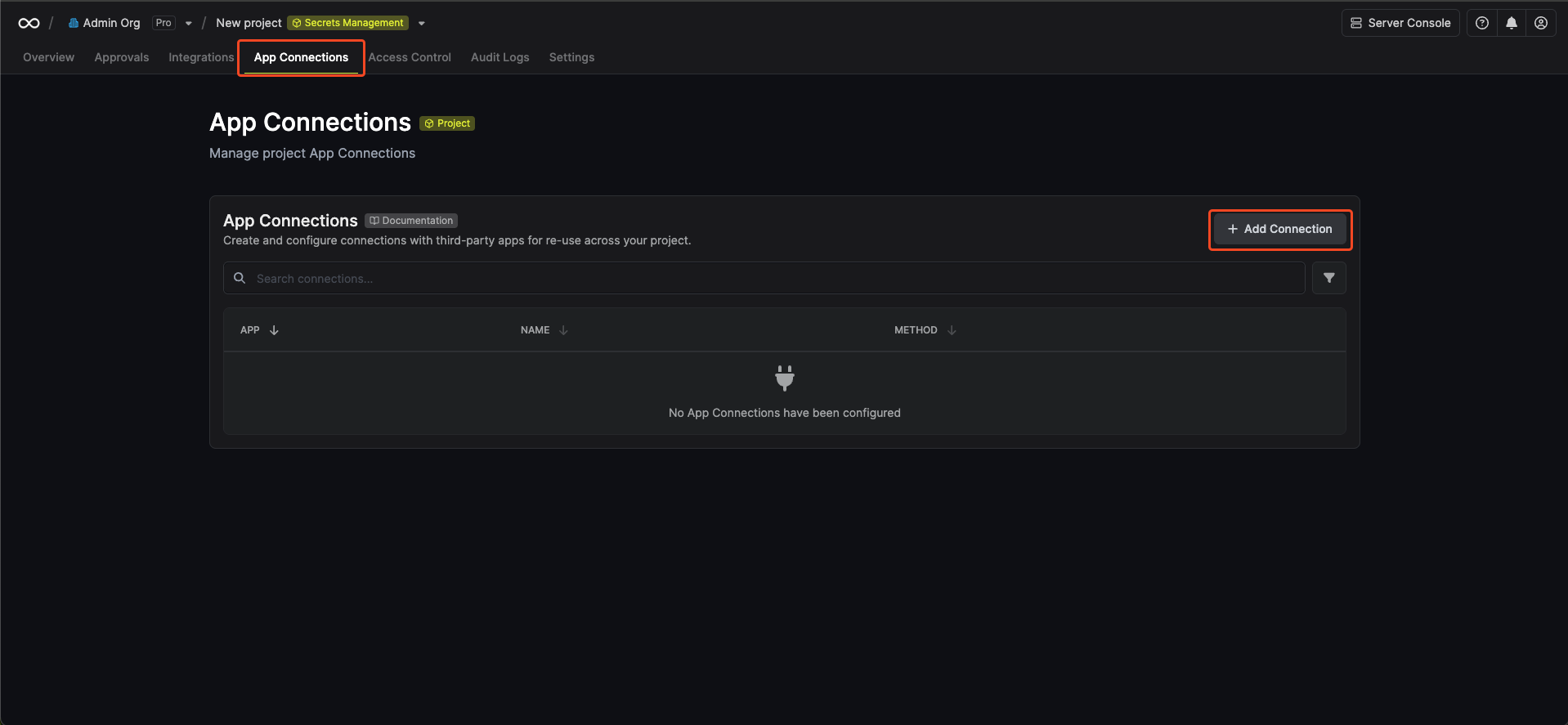 Select the **GitHub Radar Connection** option from the connection options modal.
 Select the **GitHub App** method and click **Connect to GitHub**.
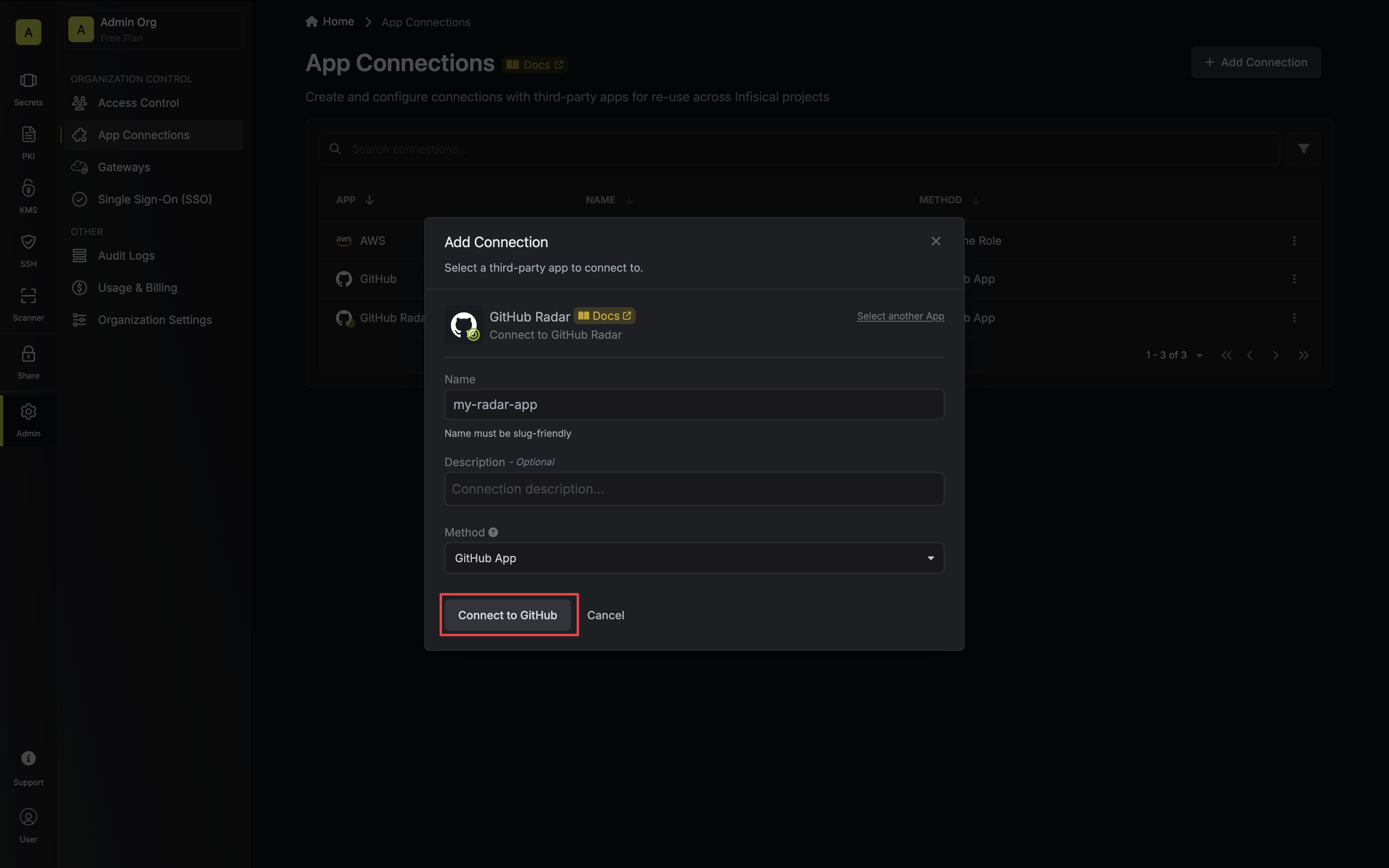 You will then be redirected to the GitHub App installation page.
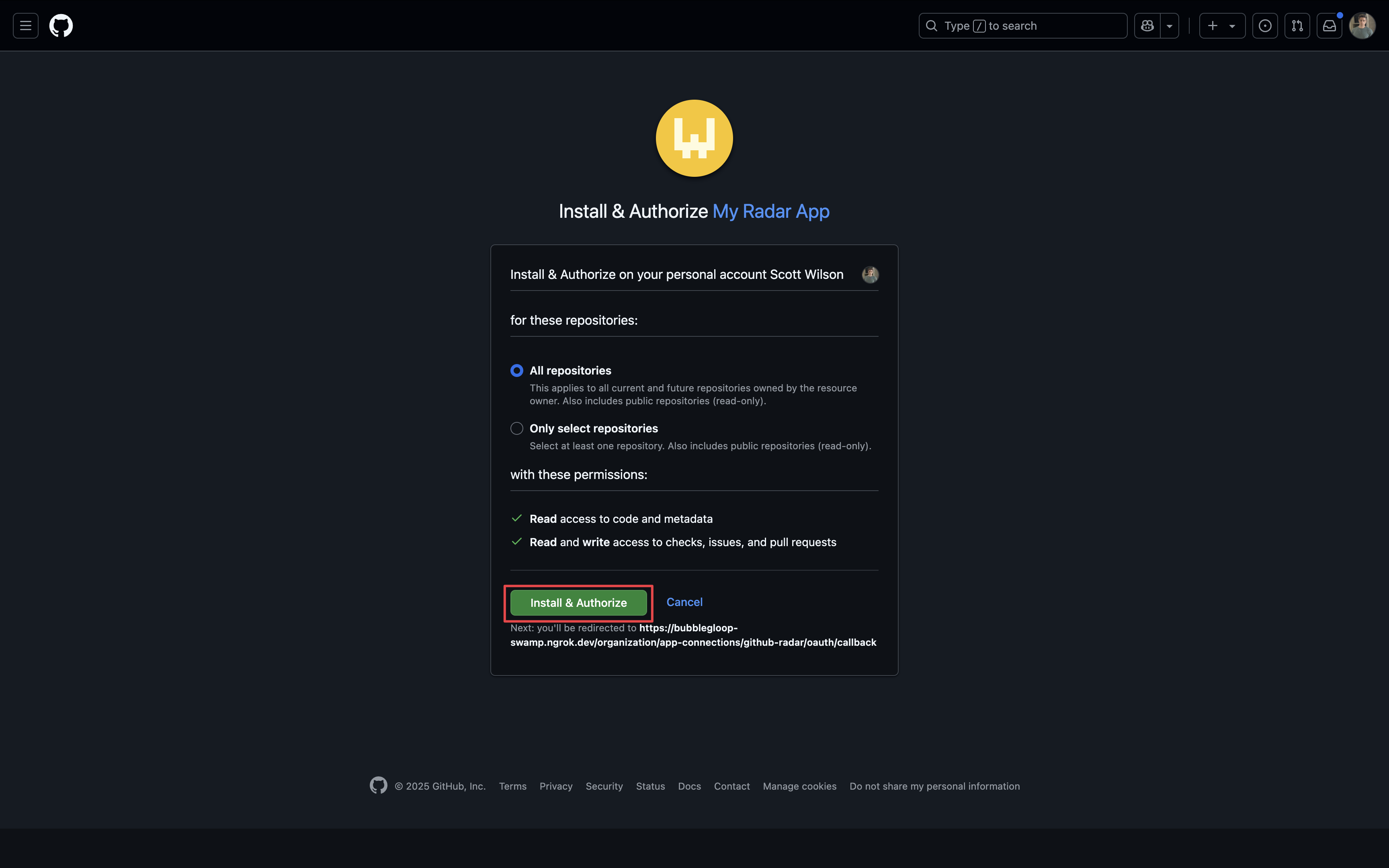
Install and authorize the GitHub application. This will redirect you back to Infisical's App Connections page.
You will then be redirected to the GitHub App installation page.
Install and authorize the GitHub application. This will redirect you back to Infisical's App Connections page.
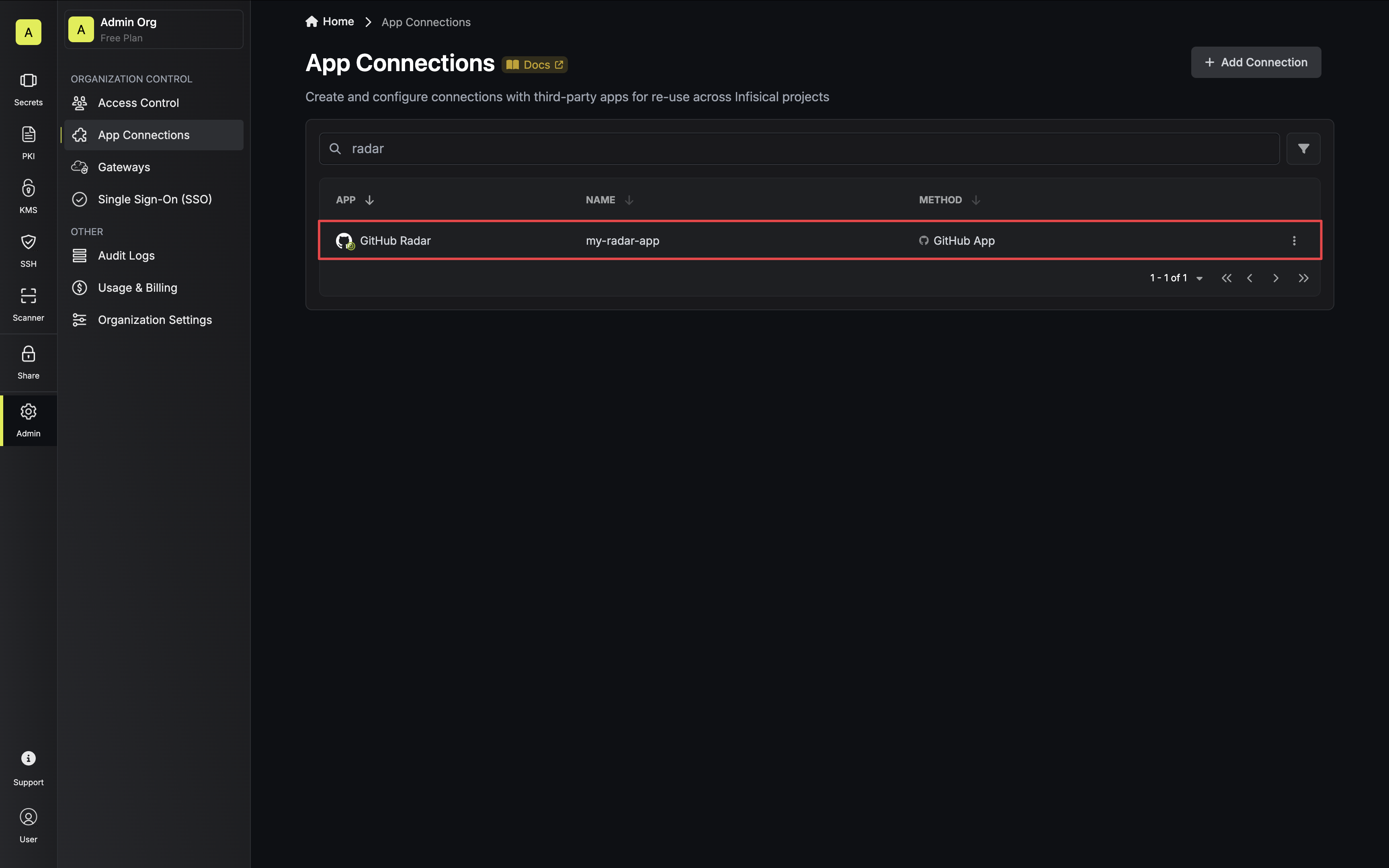
 Your **GitHub Radar Connection** is now available for use.